
Overview
Acmefyer gets TLS certificates for your servers, renews them in good time and installs them where they are needed: in IIS, in Exchange, on the FortiGate, in nginx or Apache. The certificates come from certificate authorities such as Let's Encrypt that offer the ACME protocol.
This matters more and more: public certificates will soon be valid for only a few weeks, from March 2029 for at most 47 days. Renewing them by hand hardly works any more. Acmefyer does it automatically.
Acmefyer consists of two programs:
- acmefyer-server runs on one of your servers. It talks to the certificate authority, keeps track of all certificates and renews them. You use it in the browser.
- acmefyer-agent runs on the systems that are to receive a certificate. It fetches new certificates from the server itself and installs them locally. No port needs to be opened on the target systems, and the server needs no credentials for them.
Both programs are single program files for Windows and Linux that need nothing else.
Requirements
- A server with Windows or Linux (64-bit) for acmefyer-server. A VM of its own is plenty.
- Network connections of the server:
- to the certificate authority, for example Let's Encrypt (HTTPS, port 443)
- depending on the validation method: reachable from outside on port 80 (HTTP-01) or access to your DNS provider's interface (DNS-01), see Creating certificates
- to
www.wedigo.net(HTTPS, port 443) for updates and the license - if the server reaches the internet only through a proxy: see Internet access through a proxy
- Agents only need a connection to the Acmefyer server (with HTTPS on port 443 like the browser, otherwise through the agent port, 8444 by default). They do not need internet access.
- A certificate for the Acmefyer server itself as soon as you use agents. Agents only connect over HTTPS, see HTTPS for the server.
Installation
Put the program file in a folder of its own, for example C:\Program Files\Acmefyer or /opt/acmefyer. Start Acmefyer by hand the first time, in a console window in that folder:
Windows
cd "C:\Program Files\Acmefyer"
.\acmefyer-server.exe
Linux
cd /opt/acmefyer
./acmefyer-server
On the first start, Acmefyer creates the file config.yaml with your settings in the folder, plus the database acmefyer.db and the folder data.
Run as a service
To keep Acmefyer running, also after the server restarts, set it up as a service. This needs administrator rights (on Linux sudo). Run the commands in the program folder, so the service uses the config.yaml there.
Windows
.\acmefyer-server.exe service install
.\acmefyer-server.exe service start
Linux
sudo ./acmefyer-server service install
sudo ./acmefyer-server service start
Should the service ever crash, Windows restarts it on its own.
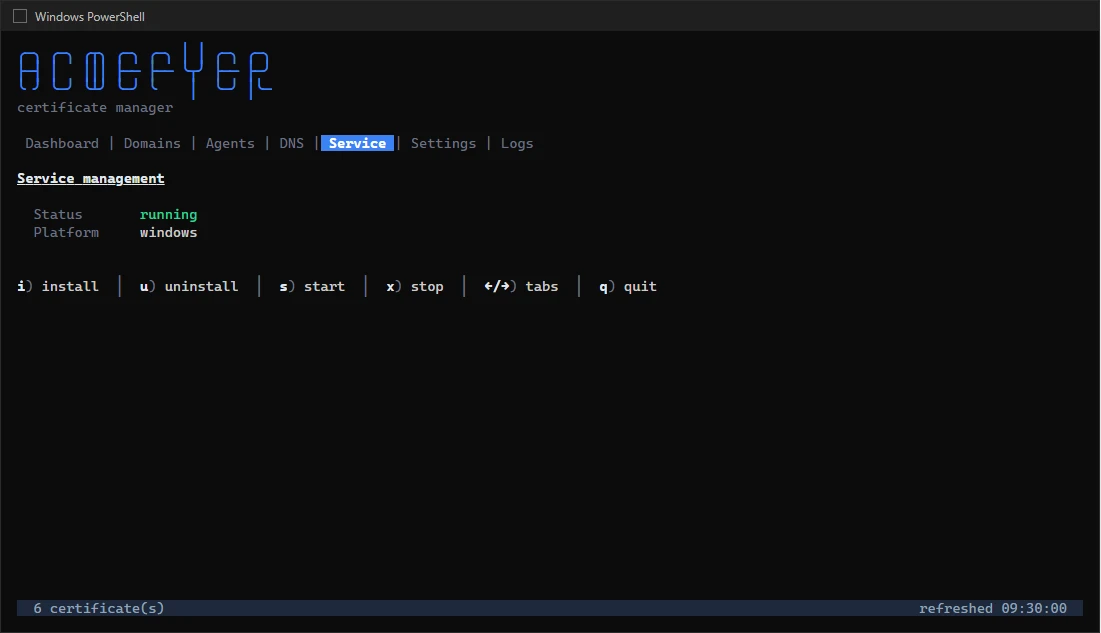
You can also do this in the console window: tab Service (key 5), then i to set it up and s to start it. The console window must be opened with administrator rights for this, too.
Setup
First login
On the first start, Acmefyer creates the user admin with a random initial password. The password is shown only once: in the console window on the Dashboard tab and in the log. At the first login you choose your own password.
Open the interface on the server in the browser at http://127.0.0.1:443 (once HTTPS is set up, at https:// and the server's name, without a port), or press o in the console window. Language, appearance, *Change password* and, for administrators, the Settings are in the user menu at the top right. The settings are divided into sections: Software update and license, Web interface, Server, HTTPS, Validation, DNS servers, Sign-in and API, Admin account, AD/LDAP, Agents, Proxy and Logging (see Configuration in the browser). The accounts at the certificate authorities (ACME accounts) are under Credentials.
On the first start Acmefyer also creates a master key and stores it in config.yaml (server.master_key). It encrypts every secret in the database: certificate keys, credentials for DNS providers, passwords for SSH and FortiGate. Without this key the database is worthless. Keep it with your backups.
Access from other computers
At first, the interface can only be reached on the server itself. That way nobody gets in from outside by accident. To open it from your workstation:
- press
lin the console window, or - set it in the browser under Settings → Web interface, or
- set
server.http_addrto0.0.0.0:443.
Then restart the service and open port 443 in the server's firewall. Agents use it too if the certificate is publicly trusted; otherwise also open the agent port 8444 for them. If a web server already uses port 443 on the server (such as IIS), choose another port for Acmefyer, for example 0.0.0.0:8443. On Linux a port below 1024 needs root rights; as a service Acmefyer has them. You can change the port in the browser under Settings → Web interface, on the Settings tab of the console window (key 6) or in server.http_addr.
HTTPS for the server
As long as no certificate is configured, the interface is unencrypted (HTTP). For your browser on your own network that may do for a while. Agents do not need it: they connect encrypted through the agent port.
The easiest way is to let Acmefyer get the certificate for itself: under Settings → HTTPS, enter the name under which you reach the server, for example acme.example.com. The wizard creates the certificate with the deployment Acmefyer HTTPS Certificate. Once it is issued, Acmefyer places the files under data/tls, sets them as server.tls_cert and server.tls_key and restarts the service; after that the web UI runs with HTTPS. If Acmefyer does not run as a service, restart it yourself. Choose DNS-01 when the server cannot be reached from outside.
The deployment Acmefyer HTTPS Certificate can be added to any other certificate too, such as a wildcard certificate that covers the server's name; under Settings → HTTPS this is *Use an existing certificate*. Every renewal is taken over by Acmefyer, without a restart.
To use a certificate of your own instead, set server.tls_cert and server.tls_key (paths relative to config.yaml); renewed files are picked up without a restart then as well. Alternatively, put a web server with HTTPS in front, for example IIS or nginx.
Internet access through a proxy
In many company networks the server cannot reach the internet directly, only through a proxy. Then the license check, updates, the certificate authority, the interface of your DNS provider and notifications (Teams, Telegram, webhooks) need that proxy.
On Windows, Acmefyer takes over the proxy of the server by itself: the system-wide proxy (netsh winhttp show proxy) and otherwise the proxy from the Internet Options, together with its exceptions. Automatic configuration (PAC file, automatic detection) is not taken over. The log and the Settings tab of the console window show which proxy is used and where it comes from. Only if no proxy is set there, or Acmefyer should use a different one, enter it in Acmefyer. The easiest way is the browser: Settings → Proxy: enter address, password and exceptions, check them with *Test the connection to www.wedigo.net*, save and apply with *Restart now* (see Configuration in the browser). In the console window:
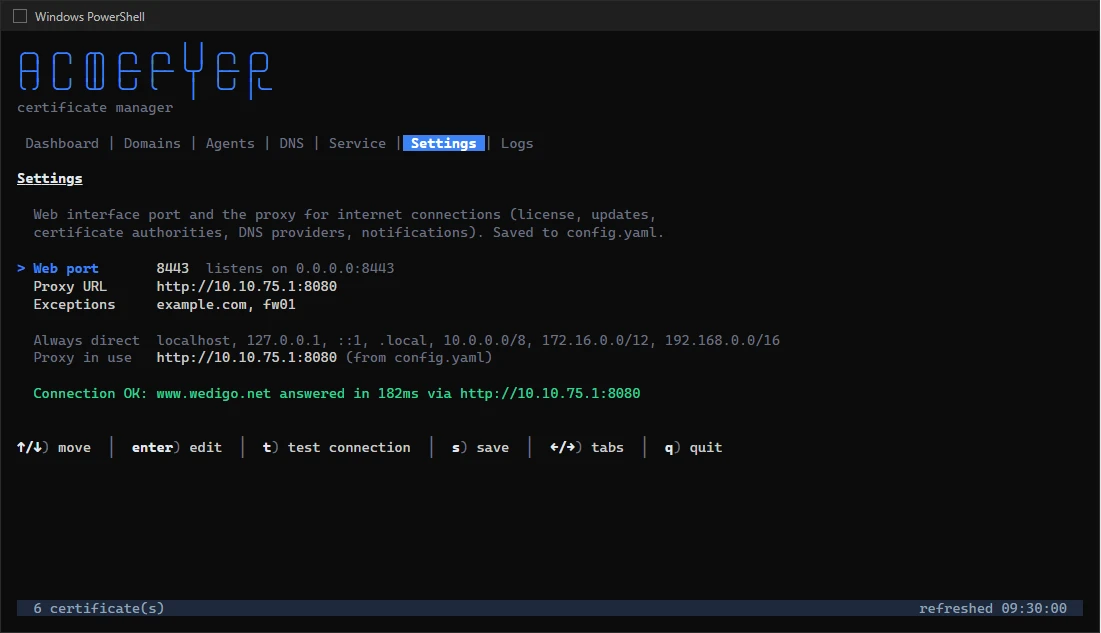
- In the console window, open the tab Settings (key
6). - Choose Proxy URL with the arrow keys, press
Enter, type the address, for examplehttp://10.10.75.1:8080, and pressEnteragain. If the proxy needs a login:http://user:password@10.10.75.1:8080. Acmefyer stores the password encrypted in the database, not inconfig.yaml. - Under Exceptions, enter the names that are reached directly, separated by commas, for example
corp.example.com, webhook01. - Press
tto test the connection towww.wedigo.netwith the values entered. If it fails, Acmefyer says why and what helps. - Press
sto save, then restart the service (on the same tab withR, if the service is running).
Or write it into config.yaml and restart the service. A password written there by hand is moved into the database at the next start:
proxy:
  url: "http://10.10.75.1:8080"
  no_proxy: ["corp.example.com", "webhook01"]
This server itself and all private addresses (10.x.x.x, 172.16.x.x to 172.31.x.x, 192.168.x.x) are always reached directly. Add internal targets that you give by name, such as the address of a webhook on your own network, to the exceptions. Otherwise Acmefyer sends those requests to the proxy as well. A domain such as corp.example.com includes all names below it. E-mail (SMTP), SSH and LDAP never go through the proxy.
Names without a domain that Windows reaches directly (<local> in the exceptions) are not taken over: enter them in the exceptions, or use the full name.
Which proxy applies: first the setting in Acmefyer (proxy.url), then the environment variables HTTPS_PROXY and NO_PROXY, then the system-wide Windows proxy, then the Internet Options. Agents do not use a proxy: they only connect to the Acmefyer server, and also ignore HTTPS_PROXY.
Configuration in the browser
Everything the server reads from config.yaml can also be changed in the browser: Settings in the user menu (administrators only). The dialog opens over the current page and groups the values into sections on the left: first Software update and license, then Web interface (port and reach: this machine only, all interfaces or the address set; sign-out after inactivity, as in Spherifyer), Server, HTTPS, Validation, DNS servers, Sign-in and API, Admin account, AD/LDAP (with tests, see Users and permissions), Agents, Proxy and Logging. Save at the bottom of the dialog saves the section shown. Only changed values are saved; comments and the rest of the file stay as they are. If a value is invalid, the page says why and saves nothing. It never shows passwords and tokens; an empty field keeps the stored value. The proxy password goes encrypted into the database, not into config.yaml.
The changes apply after a restart. Until then the page marks them with *after restart*; when Acmefyer runs as a service, *Restart now* restarts it and the page reloads by itself. Values from environment variables are shown with the variable's name and cannot be changed. The master key (server.master_key) cannot be changed here: with another one every secret in the database would be unreadable. Change the admin password under *Change password*, the license in the section Software update and license, an agent's settings in its agent.yaml.
Creating certificates
You create new certificates in the interface under Domains with New domain. A wizard asks step by step:
- Certificate authority. The default is Let's Encrypt Staging. This is a test environment: you can try everything safely there, but browsers and devices do not trust these certificates. For real certificates choose Let's Encrypt Production or another authority. ZeroSSL and Google Trust also need the credentials of your account there (EAB ID and key). Then the Account email: the certificate authority sends important notices to this address.
- Domains. The main name, such as
www.example.com, and further names in the same certificate if you like. A wildcard certificate (*.example.com) only works with DNS-01; it includesexample.comitself, which the wildcard does not cover. Names the wildcard already covers, such aswww.example.com, are left out, because the certificate authority would refuse them otherwise. What the certificate will contain is shown below the choice. - Validation. The validation method: this is how you show the certificate authority that the name is yours.
- Summary. Check your entries and click Create certificate.
You can tell a test certificate by the Staging label in the list. Once everything works, open the certificate, choose Edit and set a real certificate authority. Saving issues it again right away. Names, validation method or credentials are changed the same way later; the current certificate stays in use until the new one is there.
Validation methods
- HTTP-01 with the built-in web server: The certificate authority fetches an address on port 80. Acmefyer opens the port only while the validation runs. The name must point from the internet to the Acmefyer server.
- HTTP-01 with an existing web server: If a web server already runs on port 80, Acmefyer puts the validation file in its folder, on the server itself or through an agent on another computer.
- DNS-01: Acmefyer briefly creates an entry in your DNS. This needs the credentials for your DNS provider's interface, which you store under Credentials or enter right in the wizard (choice Enter new credentials here, admins only). Credentials entered in the wizard are saved together with the certificate and are then available for further domains too. Acmefyer knows about 190 providers. DNS-01 is needed for wildcard certificates and for servers that cannot be reached from outside. To change stored credentials, use the pencil under Credentials: the values are not shown; an empty value after
KEY=keeps the stored one, a new value replaces it. - TLS-ALPN-01: Like HTTP-01, but over port 443. Only possible while the web UI itself does not listen on port 443 (
server.http_addr).
DNS on your own network
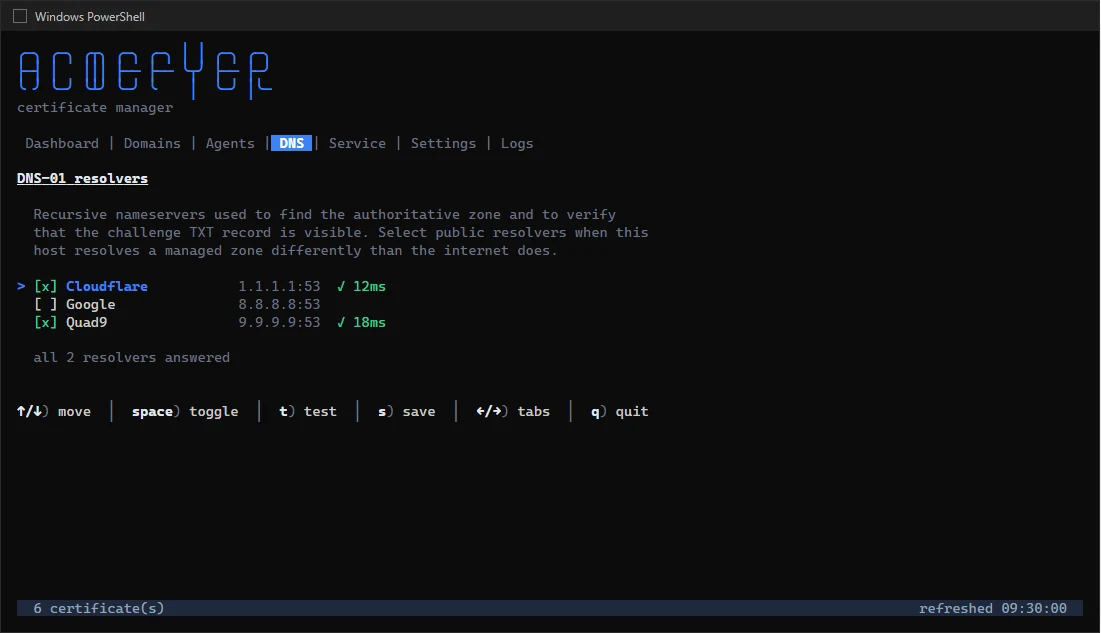
If your own DNS server answers for the zone differently than the internet does (typical with Active Directory), Acmefyer does not see the validation entry and waits in vain. In that case, choose public DNS servers: in the interface under Settings → DNS servers (tick suggestions such as Cloudflare, Google Public DNS, Quad9 or OpenDNS, add your own addresses, and use Test before saving to see whether they answer), in the console window on the DNS tab (key 4) or with the setting server.dns_resolvers. The change applies right away, without a restart.
Projects
On the Domains page, New project groups domains, for example per customer or per DNS account. A project can carry DNS credentials (provider and stored credential, such as the API token of one Hetzner project) and defaults for new domains (CA, account e-mail). A domain is put into a project in its form; with Credentials of the project it uses the project's DNS credentials, and changing them in the project changes them for all these domains at once. Deleting a project keeps its domains, without a project and with the credentials they have. The Domains page lists the domains by project, those without one at the end.
Renewal
Every hour Acmefyer checks which certificates expire soon and renews them 30 days ahead. If that fails, Acmefyer tries again later, with growing intervals. To renew a certificate by hand, use Renew in the interface or R in the console window.
At the top right of the interface a dot shows the state: green when all is well, yellow while certificates are being issued or renewed, red when a certificate ran into an error. A click on it shows the last and the next check, the number of certificates and the agents connected right now. The button on the far right (Check now, for admins) starts the check right away instead of waiting for the next hour.
Deploying certificates
A new certificate is only useful once it arrives on the target system. For this, you add one or more targets to each certificate. After every renewal Acmefyer installs the certificate on all targets again. If a target fails, Acmefyer tries again after 5 minutes, then at growing intervals up to 6 hours.
For each target you choose who runs it: the server or an agent.
On the server only targets run that install nothing on other systems:
- File (PEM) and PFX: Write the certificate as files to a folder, also to a Windows share.
- SSH: Copy the files to a Linux server over SSH, reloading nginx or Apache if you like.
- Webhook: Call an address when there is a new certificate.
- Acmefyer HTTPS Certificate: Use the certificate for the web UI of this server, see HTTPS for the server.
Through an agent runs everything that sets something up locally:
- IIS: Install the certificate in Windows and bind it to the website.
- Exchange: Import the certificate into Exchange (one imported already is only enabled again) and enable it for the chosen services, by default IIS, IMAP and POP. SMTP only on request: the transport selects its certificate by the server name (such as ex03.company.local), which a public certificate does not cover. IMAP and POP select their certificate by name; the agent sets it to a name the new certificate covers (the current one if it fits, else the first name without a wildcard or the one given in the field) and restarts both services. It then checks that port 443 presents the new certificate and otherwise enables the previous one for IIS again. The previous certificate stays in the store, since the Exchange Back End site (port 444) keeps using it. Exchange SE takes ECC certificates only with a setting override of its own, so give the domain an RSA key. In a DAG, add the deployment for every Exchange server with its agent. Acmefyer then never rolls it out to all of them at once but at least an hour apart between two servers; the waiting ones read Waiting until ….
- Windows certificate store: Install the certificate in a store, for example for RDP or SQL Server.
- nginx and Apache: Write the files and reload the web server.
- Traefik: Write the files and a dynamic configuration file of their own into the directory of Traefik's file provider (
providers.file.directory). Traefik loads the certificate by itself; Acmefyer rewrites the file on every renewal so that Traefik notices the new certificate. If Traefik runs in a container, also give the paths as Traefik sees them. Replace configuration file takes over a certificate referenced by an existing file of the file provider (such as a tls.yml): once Acmefyers file is in place, that file is renamed to *.replaced-by-acmefyer, but only if it holds nothing but these certificate files. The agents scan fills this in where it applies. A file in that directory that Acmefyer did not write is never overwritten. - HAProxy: Write the PEM file for a
bind … ssl crtline, certificate and key in one file unless a key path is given, and reload HAProxy. - Apache Tomcat: Write the certificate as a Java keystore (PKCS#12, or JKS for .jks/.keystore files) with the password and alias of the connector in
server.xml, then restart Tomcat. - MailStore Server: Import the certificate into the Windows certificate store, enter it in MailStore Server's configuration (
MailStoreServer.json) and the HTTP.sys bindings and restart the service. If MailStore does not start with it, the agent undoes everything and MailStore keeps running with the previous certificate; otherwise it removes the previous one. The agent does this itself through the Windows interfaces, without PowerShell. It runs on the MailStore server. - PRTG Network Monitor: Write certificate, key and chain as
prtg.crt,prtg.keyandroot.peminto thecertfolder of the PRTG installation the way PRTG requires them: with Windows line breaks,root.pemwith the intermediates and the root (as far as Windows knows it). The agent then restarts the PRTG Core Server and, if present, the application server of the new interface (port 1616), which uses the same certificate. If one of them does not start, it puts the previous files back and starts again. Before the first replacement it keeps the files PRTG came with (*.before-acmefyer). Remote probes need the same files: the scan finds them and suggests the same deployment with the servicePRTGProbeService; add it for every probe. The certificate takes effect only when the PRTG web interface runs on HTTPS (Setup / System Administration / User Interface). - ScriptRunner: Import the certificate into the Windows certificate store and point the HTTP.sys binding of ScriptRunner's HTTPS port (usually 443) at it. ScriptRunner itself only keeps that the port uses HTTPS; the certificate lives in that binding alone. The agent then checks that the port presents the new certificate and restores the binding otherwise. No restart is needed. It removes the previous certificate once no binding uses it. HTTPS must be set up in ScriptRunner once (
Set-SrxApiPort -UseSSL). - HTTP.sys binding (Windows): For Windows applications that serve HTTPS through HTTP.sys without IIS (such as ScannerVision or Reporting Services): import the certificate into the Windows certificate store and point the HTTP.sys binding of the port at it, with a host name only its SNI binding; SNI bindings of other sites on the same port stay untouched. The agent checks that the port presents the new certificate and restores the binding otherwise; on request it restarts a service afterwards.
- Spherifyer: The certificate for the web interface of Spherifyer (vSphere dashboard). Spherifyer needs no agent: it connects to Acmefyer itself under *Settings → HTTPS*, with address, enrollment token and fingerprint from this page, and then appears under Agents as "Spherifyer (host name)". Choose that agent for the deployment. Spherifyer installs the certificate and switches to HTTPS without a restart; it is never marked outdated and not updated through Acmefyer, as it updates itself.
- Gitea: Put certificate and key where Gitea reads them (in a container on its volume, owned like
app.ini), on request (choice Switch Gitea to HTTPS, preset: No; the agent refuses while Gitea runs on port 80 or the certificate does not cover its name) switch Gitea to HTTPS inapp.iniand restart it (docker restart giteaor the service). If the restart fails, the agent puts the previousapp.iniback. With an HTTPS port (the scan suggests 443) Gitea moves HTTPS there and its previous port only redirects, so oldhttp://links keep working. For Gitea under docker compose the agent publishes the port indocker-compose.yml(backed up first) and recreates the container. It then checks that HTTPS answers and undoes everything otherwise.ROOT_URLhas to name an address the certificate covers. - Service (local): Write certificate and key to fixed paths and run a command, for example for Postfix, Dovecot, PostgreSQL, Proxmox or Cockpit. Without a key path the key goes into the certificate file.
- FortiGate: Install the certificate through the FortiGate's interface. The agent is best placed in the same network as the firewall.
- Own script: Run any command.
Acmefyer stores the passwords and keys of the targets encrypted. To change a target, use the pencil on the domain page; password fields stay empty and keep their value unless you type a new one. Acmefyer then deploys the certificate again with the new settings.
In the Domains list, the plus in front of a domain opens its targets with their state (deployed, pending, failed; hover for the error message). The Dashboard lists all targets of all domains at the bottom, failed ones first. In the status column, "Deployments 1/2" shows how many of them are deployed; red as soon as one failed. The circular arrows (Deploy again) deploy a target again at once, for instance after you fixed the cause of a failure. Targets that install on the system of their agent (IIS, local nginx, MailStore Server and others) stay bound to that agent when edited; for another system, add a new target there.
Quicker from the agent's page: The agent finds the applications on its system that serve TLS (see Detected applications). Where one fits a certificate of this server, Add deployment opens this page with type, agent and paths filled in. The suggestion then comes first, the agent is the one that found the application; the other targets fold out below. Where the scan has no fitting suggestion (for Gitea without TLS, for instance), Choose deployment opens the same page with the agent and all targets; for an application without a fitting domain, pick one of the existing certificates (Choose certificate), even if the name in the application still differs; you then adjust it there. Where the scan has a suggestion (Gitea, for instance), the deployment opens filled in with it. The plus next to it creates a new domain instead and leads to the same page right after. Without any detected application, choose a domain under Deployments on the agent's page and add the deployment for this agent.
Agents
An agent is a small program on the target system. It checks in with the Acmefyer server regularly, fetches new jobs and runs them. The connection always goes from the agent to the server, never the other way round.
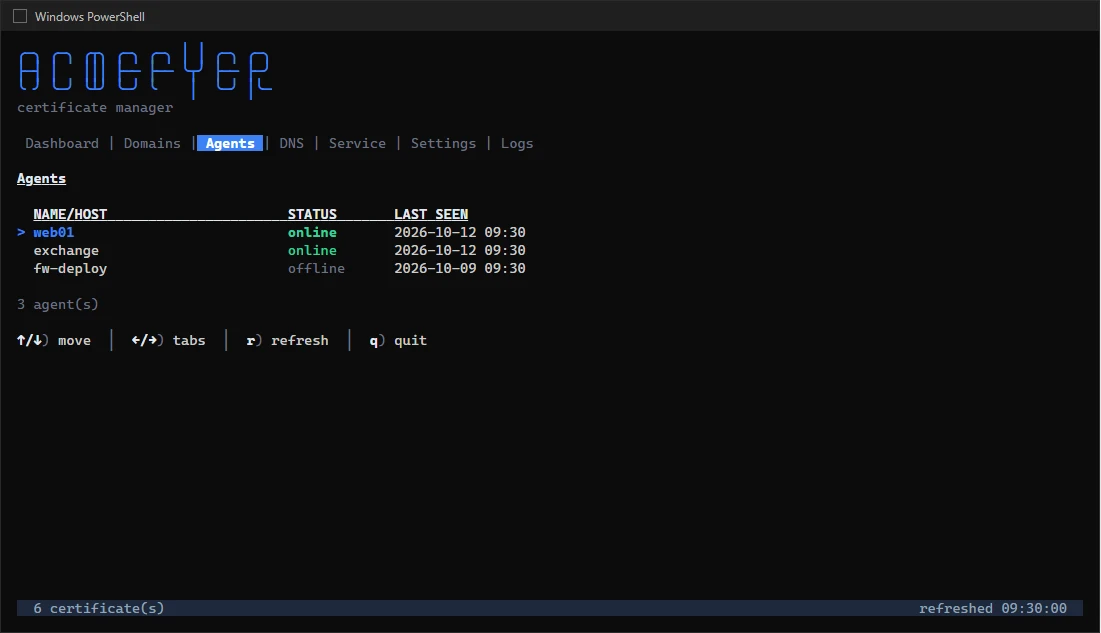
If the web UI has HTTPS with a publicly trusted certificate (for example from Let's Encrypt), agents reach the server like the browser on that port, usually 443: one firewall rule is then enough for agents and browsers. The interface puts this address into the agent.yaml under Agents, the setup packages and the remote installation as soon as the certificate fits.
Otherwise agents reach the server through an agent port of its own (agent.listen_addr, default 8444), always encrypted: the certificate for it is issued by the server's built-in agent CA, so HTTPS for the web UI is not needed. The fingerprint of this CA is shown in the interface under Agents. With it a new agent trusts the server on its first contact; after that it knows the CA itself. Agents set up on the agent port keep using it, even if the web UI gets HTTPS later; to move one to 443, change server_url in its agent.yaml (without :8444) and restart the service. It keeps its identity.
To set up an agent:
- On the server, set a secret enrollment token for agents,
agent.enroll_tokeninconfig.yamlor in the browser under Settings → Agents, for example a long random string. Restart the service. - On the target system, put the program file
acmefyer-agentin a folder, and next to it a fileagent.yaml. The interface shows it under Agents, ready to copy:
agent:
  server_url: "https://acme.example.com:8444"
  enroll_token: "the same token as on the server"
server_ca_fingerprint: "sha256:…"- Set up the agent as a service and start it:
Windows
.\acmefyer-agent.exe service install
.\acmefyer-agent.exe service start
Linux
sudo ./acmefyer-agent service install
sudo ./acmefyer-agent service start
Easier with the setup package: Under Agents there is a setup package per platform (Windows x64, ARM64 and x86; Linux x64, ARM64, ARM and x86), a single file: the agent with the finished agent.yaml inside. Started on the target system as an administrator or with sudo, it copies itself to C:\Program Files\Acmefyer Agent or /opt/acmefyer-agent, writes the agent.yaml there, installs the service and starts it. Steps 2 and 3 are not needed then. The server takes the program files from data/agent-bin/<platform>/ (for example data/agent-bin/linux-arm64/acmefyer-agent), from beside its own program file or from the update feed; if a platform is missing, the page says where the file belongs. The package contains the enrollment token, so do not pass it on.
Or install from here: Also under Agents, Acmefyer installs the agent on a target system itself, over SSH (Linux: a user with root rights or sudo without a password, password or private key) or over PowerShell remoting (Windows: WinRM must be enabled, Enable-PSRemoting; a user with administrator rights, domain accounts as DOMAIN\user; port 5985, or 5986 with HTTPS). Acmefyer finds out the target's processor and takes the matching package. A Windows target downloads the package through a one-time address from this server (over HTTPS or the agent port, as in the agent.yaml) and checks its digest, so it has to reach the server there. Every job is shown on the page with its log; the credentials are not stored.
The agent then appears in the interface under Agents. On its first connection it gets an identity of its own from the server (a certificate and a key of its own) and stores it in the folder agent-data. After that it no longer needs the enrollment token. You can remove it from agent.yaml.
Every agent gets a running number at enrollment (A001, A002 ...) that is never handed out again, even after an agent was removed. Deployments name it, for example, "Agent 001 (mailarchiv)": number and name, the host name when it has no name of its own. To change the name, use the pencil next to it in the list. The list shows the host with its full name in capitals (MAILARCHIV.ITV.LOCAL); for older agents that report only the short name, the server completes it from DNS.
When an agent is older than the server, the list shows the Update button (arrow up); while the update runs, a spinner turns there. After 24 hours the server updates outdated agents on its own (agent.auto_update_after); if that fails, it tries again only after another 24 hours.
The agent does not connect to an http:// address, and without the agent port the server refuses agents that reach it without HTTPS. For a test setup only, this can be switched off with agent.allow_insecure_http: true, on the server and the agent. An agent already enrolled through server.http_addr with HTTPS keeps working there.
The list under Agents shows next to each name the IP address of its system (the one it reaches the server through; all of them on the agent's page, together with platform and version). Restart restarts the agent's service with its next poll, after its poll interval at the latest. This works for agents running as a service; deployments running at that moment are repeated on the next poll.
Update appears when an agent runs another version than the server. With its next poll the agent fetches the agent program of this server for its platform (the same one the setup package contains), checks its digest and that it starts, puts it in place of its own and restarts. Agents before this version cannot do that yet: reinstall them once with the setup package or the remote installation.
An agent reinstalled over an existing installation keeps its identity. If it was removed under Agents before, it enrolls again with the enrollment token from its new agent.yaml. An agent that was only removed, without being reinstalled, stays away.
Removing an agent
Uninstall from host on the agent's page (under Remove agent, administrators only) removes the agent completely from its system without you signing in there. With its next poll the agent does it itself:
- It unregisters its service (on Windows together with its event log source, on Linux the systemd unit). If that fails, it changes nothing else, keeps running and reports the error; the page shows it.
- It deletes its
agent.yaml(with the enrollment token) and its identity (key, client certificate, own secret). Theagent-datafolder the setup creates goes as a whole; with anagent.data_dirchosen by hand only its own files in it. - It deletes its program together with the leftovers of the self-update, and the installation folder when nothing else is in it. On Windows a small helper does this once the service has stopped, since Windows locks a running program.
- It reports to the server what it removed. Only then does it disappear from the list; the audit log records what was removed.
If the agent is offline, the request waits for its next poll; meanwhile the list shows Removing and the request can be withdrawn. What stays are the certificates the agent installed for deployments and their backups (*.before-acmefyer), since the applications use them, and entries already written to the event log or the systemd journal. Agents before this version cannot remove themselves yet; update them first.
Delete here only, by contrast, removes the agent from Acmefyer only, for instance when its system no longer exists. On a system that is still there it then stays installed.
On the system itself: acmefyer-agent uninstall (or remove) does the same directly on the system, without a request from the server: it stops and unregisters the service, deletes configuration, identity, program and installation folder, and tells the server, which then takes the agent off the list. If the server cannot be reached, the command removes the agent anyway and says to delete it under Agents. The command asks nothing, prints what it removed and exits with code 0 when everything is gone; with no agent installed it says so and exits with 0 as well. If the service cannot be unregistered, it changes nothing and exits with 1. It works with the installed program as well as with the setup package; give another installation folder with -dir.
Windows
& "C:\Program Files\Acmefyer Agent\acmefyer-agent.exe" uninstallLinux
sudo /opt/acmefyer-agent/acmefyer-agent uninstallWith PDQ Deploy or another software distribution, distribute the Windows setup package from Agents: to install, as an install step with the parameter setup; to remove, the same package with the parameter uninstall. Both run without prompts under the system account and report success with exit code 0. Installing again over an existing installation keeps the agent's identity, and uninstalling with no agent installed counts as success, so both steps can safely be repeated.
Detected applications
The agent scans its system for applications that serve TLS and lists them on its page: the sites and virtual hosts of nginx and Apache, Traefik (also in Docker, with the routers of its configuration and of container labels), HAProxy, Caddy and lighttpd, IIS with its bindings, Exchange, MailStore Server, PRTG Network Monitor, ScriptRunner, Remote Desktop, WinRM and SQL Server, Postfix and Dovecot, PostgreSQL, MySQL and MariaDB, Proxmox VE and Proxmox Backup Server, Cockpit, Webmin, Grafana, Mosquitto, Tomcat, OpenLDAP, GitLab and Gitea (also in Docker, from its app.ini). Docker itself is listed with its running containers, applications without TLS (such as Gitea behind a proxy) with the note "no TLS". For each it shows names, ports, the certificate file and the certificate in use with its expiry.
On Windows it also finds Tomcat, Apache and nginx where vendors bring them along: through the service that starts them (Tomcat also through the procrun parameter catalina.base, services behind NSSM as well), and restarts them through that service. In addition it lists the HTTP.sys bindings neither IIS nor a known product uses as HTTP.sys, and every other listening port that speaks TLS as TLS service with the program behind it (such as "java.exe – ManageEngine\ADAudit Plus"). TLS services have no deployment; they make the certificate visible under Found certificates.
If a certificate of this server covers the names, Add deployment opens the deployment with type, agent and paths filled in; a deployment that exists already is marked. Without a matching certificate, Add domain starts one for the first name. Applications that get their certificates themselves (Caddy, Traefik with an ACME resolver, certbot) or use the system's default certificate (such as Debian's snakeoil) are marked and get no suggestion, so that no certificate shared with others is overwritten. Equally marked and without a suggestion are: IIS on a Configuration Manager server (SCCM) and the web enrollment of a certification authority (internal PKI; the WSUS site stays open, also on the SCCM server), IIS bindings to the central certificate store, and web servers whose configuration a product writes itself, such as VisualSVN Server or MyQ (managed by the vendor). An https binding HTTP.sys has no certificate for (the WSUS installer creates port 8531 that way) counts as no TLS.
The scan also looks for what renews a certificate already: certbot (also through its hooks), acme.sh, lego and similar clients in cron jobs and systemd timers, containers such as certbot or traefik-certs-dumper that write into the certificates folder, and on Windows win-acme, Certify The Web and Posh-ACME. Such an application is marked renewed by …; a certificate of an ACME CA (Lets Encrypt, ZeroSSL, …) replaced within the last weeks without a known mechanism is marked replaced recently, no renewal found. Before moving it to Acmefyer, switch the other renewal off, or both overwrite each other.
The scan only reads configuration files and certificates, never private keys. Apart from that it only asks docker (for Traefik in containers), on an Exchange server the Exchange Management Shell, and the list of listening ports (Windows: Get-NetTCPConnection, Linux: ss); it opens a TLS connection to each of these ports to read the certificate, without sending a request. The agent scans after it starts and then every 24 hours (agent.scan_interval), and right away with Scan now.
Found certificates
Found certificates on the Domains page brings two sources together: the scan results of all agents and the server's own network scan (below). Every certificate appears once (by its thumbprint), with all agents, applications and endpoints that serve it, and checked against Acmefyer:
- Missing in Acmefyer: no domain covers the names. The plus creates a domain with the certificate's public names; internal names (.local, short names such as EX03, IP addresses) are left out, as no public CA issues them.
- Domain exists: a domain covers the names, but the application still serves another certificate. Add deployment sets it up for the agent. For an endpoint from the network scan with no agent on it there is nothing to add; the row shows the covering domain instead.
- From Acmefyer: the application already uses a certificate from Acmefyer.
- Internal: self-signed certificates and those with internal names only. They are hidden and can be shown.
The list is as current as the last scan.
Network scan from the server
Even without an agent the server can search the network for certificates. Under Network scan on the same page you enter the ranges, one per line: an address, a host name or a CIDR range (e.g. 192.168.16.0/24), optionally with :port (otherwise the usual web ports are tried). Scan now starts it at once, after which it runs once a day. The server only opens a TLS connection, reads the certificate presented and recognises the product from a simple HTTP answer (server header, title, redirect). It signs in nowhere, uses no credentials and changes nothing. A range larger than /16 is refused, and one run probes at most a few thousand addresses, so a typo cannot turn into an unbounded sweep. Endpoints found appear in the list above with address, port and the recognised product. Scan only networks you are responsible for.
Notifications
Under Notifications you decide who hears about it when a certificate was issued, a renewal fails or a certificate expires soon. E-mail, Microsoft Teams, Telegram, PRTG and webhooks are available. Test checks that a message arrives. When you add a channel, the form shows an example with all settings of the chosen type and only its hint.
Users and permissions
Besides the local user admin, your colleagues can sign in with their Windows account once you connect Active Directory (or another LDAP server): under Settings → AD/LDAP. The section brings everything together:
- Connection: server address (
ldaps://dc01.corp.local:636orldap://…:389, optionally with StartTLS), reader account with password and search base. *Test connection* checks the values entered, before you save. - Access: there are two roles. For Admin and Viewer choose a group each (also through nested groups in Active Directory) or an OU whose accounts get the role; admin comes first. Type into the search field; groups and OUs appear with their DN, and *Admin* or *Viewer* takes the hit. For all other accounts choose *No access* (only the chosen groups and OUs get in) or *Viewer* (every account from the directory may read).
- Test sign-in: signs an account in on trial and shows DN, groups, the role and what decided it.
*Save* writes the values to config.yaml and applies at once to the next sign-in, without a restart.
The roles:
- Admin: may do everything, including credentials, agents, notifications and settings.
- Viewer: sees everything, changes nothing.
You can protect the local user admin with a second factor too: under Settings → Admin account with *Set up two-factor*. Scan the QR code with an authenticator app (such as Microsoft or Google Authenticator) and confirm with the current code from the app (*Activate*). From then on, the sign-in of admin also asks for the *Two-factor code*. In the same section, *Disable two-factor* switches it off again.
Forgot the admin password? Stop the service, delete the line local_admin_password_hash in config.yaml and start the service again. Acmefyer then creates a new initial password and shows it in the console window and in the log.
What was changed in Acmefyer is listed in the menu under Audit: who did what and when, with time and user, newest first. The list can be searched (domain and agent names included) and filtered by area, user and period; domains and agents are linked.
License and activation
Without a license key, Acmefyer manages one domain with one subdomain (or one wildcard certificate) and one agent, so you can try the program. With a license key there are no limits.
- You receive the license key by e-mail right after the purchase. Enter it in the interface under Settings → Software update and license via *Enter license key*, together with the e-mail address you bought it with. Alternatively it goes in
config.yamlunderlicense. - Activation needs a connection from the server to
www.wedigo.net, also through a proxy (see Internet access through a proxy). After that Acmefyer checks in there briefly every 30 days. If the connection fails, the license keeps working for up to 60 days. - A license covers one installation and all updates of the purchased version, for example all 1.x versions. When a new major version comes out, Acmefyer points it out but does not install it by itself.
- If a license ends or a key is invalid, Acmefyer still starts and keeps renewing all existing certificates. Only new ones can then no longer be created.
More on purchase and refunds: Pricing and License terms.
Updates
Acmefyer keeps itself up to date. It regularly checks www.wedigo.net for a new version, verifies that it really comes from us, and installs it.
How this works is set by update.mode:
auto(default): New versions are installed, and the service restarts briefly afterwards.notify: Acmefyer only reports a new version. You install it yourself in the interface under Settings → Software update and license.off: No update checks.
With update.window you set a time during which installing is allowed, for example "02:00-05:00".
Updates always stay within your major version, for example 1.x. When a new major version comes out, Acmefyer shows a notice at the top of every page and under Settings → Software update and license: your license is not valid for the new major version, it needs an upgrade. Your version keeps receiving updates. An administrator can dismiss the notice at the top; it returns with the next major version.
Updates are only installed automatically when Acmefyer runs as a service and may write to its program folder. Started by hand in the console window, it only reports new versions.
Back to the previous version
Acmefyer keeps the previous version. If a new version does not start properly, it goes back to the old one by itself. You can also do this by hand:
Windows
.\acmefyer-server.exe rollback
.\acmefyer-server.exe service restart
Linux
sudo ./acmefyer-server rollback
sudo ./acmefyer-server service restart
Backup
Back up the server's program folder. What matters:
config.yaml: your settings and the master key. Without it the database can no longer be read.acmefyer.db: all certificates, targets, agents and credentials. It is safest to copy it while the service is stopped.- the folder
data: among other things the certificate authority for the agents. If it is lost, all agents have to enroll again.
On the agents, agent.yaml with the folder agent-data is enough. If the folder is missing, the agent enrolls again with the enrollment token.
Troubleshooting
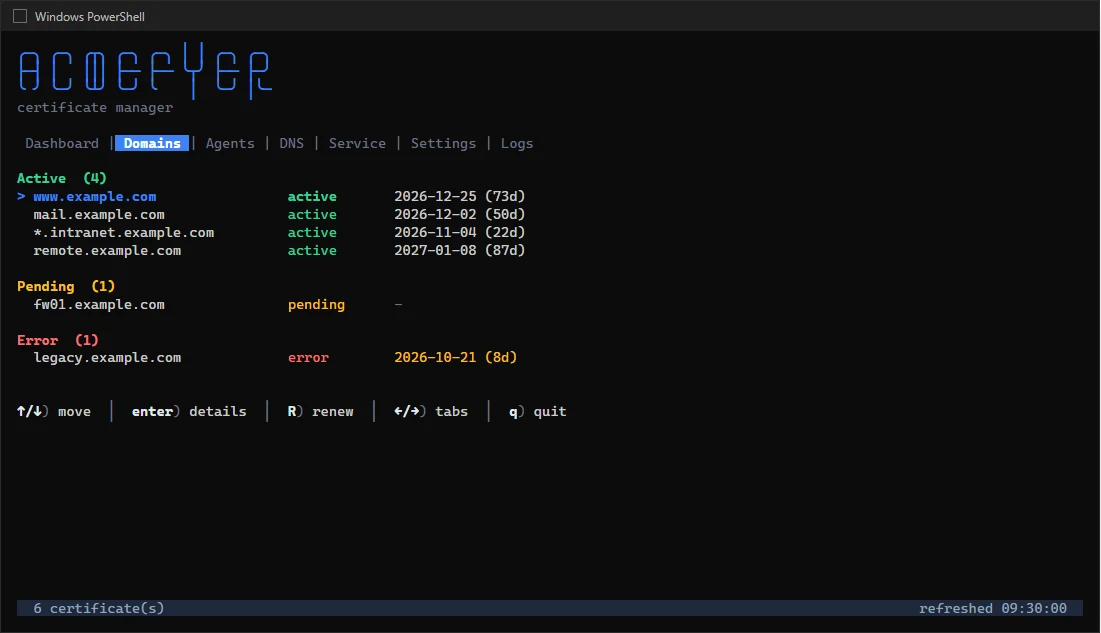
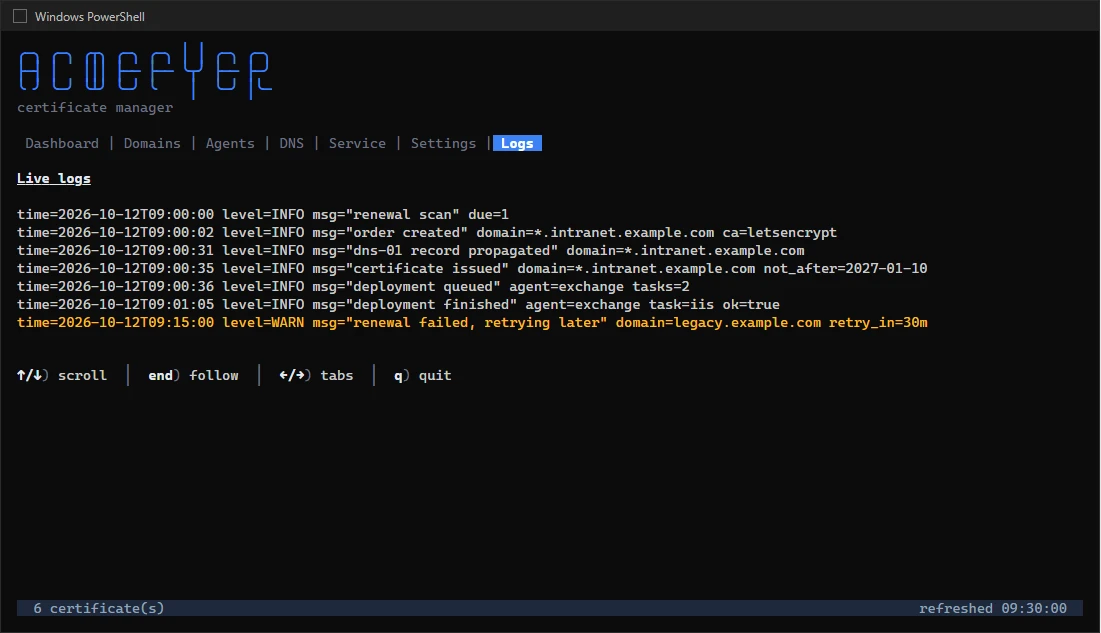
A certificate is not issued. What exactly went wrong is shown with the certificate in the interface and in the console window on the Logs tab (key 7). Common reasons: port 80 cannot be reached from outside (HTTP-01), the credentials for the DNS provider are wrong, or your own DNS server answers differently than the internet (see DNS on your own network).
Browsers warn about the new certificate. It is probably a test certificate from the staging environment. Create it again with a real certificate authority.
An agent does not show up. Do server_url and the enrollment token match on both sides? Can the target system reach the server at the address in server_url (port 443 or the agent port, 8444 by default), and, for the agent port, does server_ca_fingerprint match? The agent writes the reason to its log.
The agent reports "the server's certificate is not trusted: it was issued by "FortiGate CA"" (or another firewall). A firewall with TLS inspection (SSL deep inspection) sits between agent and server. It breaks the connection open and presents its own certificate. The agent refuses it, since the firewall could otherwise read the enrollment token and the agent's secret. Exempt the Acmefyer server from inspection in the firewall. On a FortiGate, add the name or address of the server as an exemption in the SSL/SSH inspection profile of the rule in question. Alternatively, let the rule from agent to server run without deep inspection (profile "certificate-inspection"). Trusting the firewall's CA on the agent is no way out: the firewall could then read along. The agent recognises common products (FortiGate, Sophos, Palo Alto, Check Point, Zscaler, Cisco, WatchGuard, SonicWall, ESET, Kaspersky and others) and says in its message where the exemption belongs. You can test the connection at any time with acmefyer-agent check -config agent.yaml; the setup (setup, also the remote installation in the web UI) tests it too and warns in its log.
License or updates: no connection to www.wedigo.net. The interface shows the reason under Settings → Software update and license. If the server has no direct internet access, check in the log or on the Settings tab of the console window which proxy is used; if there is none, enter it (in the browser under Settings → Proxy, with a connection test), see Internet access through a proxy. On the Settings tab of the console window, t tests the connection.
Since the proxy is set, a webhook or notification on your own network fails. Add its name to the proxy exceptions (proxy.no_proxy).
The interface only works on the server itself. That is the default. See Access from other computers.
An update is not installed. Does Acmefyer run as a service, and may it write to its folder? A version that was rolled back once is not installed again.
If none of this helps, write to us using the contact form.
Look up
This part is meant for looking things up when you want to set something specific.
Settings
The settings are in the file config.yaml in the program folder, the agent's in agent.yaml. Open them with a text editor; the server's values can also be changed in the browser under Settings. After a change, restart the service. Instead, you can also set every value through an environment variable, shown in the table below the name.
Server
| Key / environment variable | Default | Meaning |
|---|---|---|
server.http_addrACMEFYER_SERVER_HTTP_ADDR | 127.0.0.1:443 | The address at which the interface can be reached. Default 127.0.0.1:443; 0.0.0.0:443 opens it to other computers. The port can also be changed on the Settings tab of the console window. |
server.data_dirACMEFYER_SERVER_DATA_DIR | data | Folder for the server's data, among other things the certificate authority for the agents. |
server.renew_intervalACMEFYER_SERVER_RENEW_INTERVAL | 1h | How often Acmefyer looks for certificates that need renewing. |
server.master_keyACMEFYER_SERVER_MASTER_KEY | – | Master key for every secret in the database. Created on the first start. Never change it, or the database can no longer be read. |
server.api_tokenACMEFYER_SERVER_API_TOKEN | – | Key for the interface for your own scripts. Empty: the interface is off. |
server.tls_certACMEFYER_SERVER_TLS_CERT | – | Certificate file (PEM) for HTTPS. Set together with server.tls_key. |
server.tls_keyACMEFYER_SERVER_TLS_KEY | – | Key file (PEM) for the certificate. |
server.challenge_http_ifaceACMEFYER_SERVER_CHALLENGE_HTTP_IFACE | – | Network interface for validation over HTTP-01. Empty: all. |
server.challenge_http_portACMEFYER_SERVER_CHALLENGE_HTTP_PORT | – | Port for validation over HTTP-01. Empty: 80. |
server.dns_resolversACMEFYER_SERVER_DNS_RESOLVERS | cloudflare,google,quad9 | DNS servers for validation over DNS-01, for example cloudflare or 9.9.9.9. Without the key: Cloudflare, Google Public DNS and Quad9. An empty list ([]): those of the operating system. |
Login
| Key / environment variable | Default | Meaning |
|---|---|---|
auth.local_admin_userACMEFYER_AUTH_LOCAL_ADMIN_USER | admin | Name of the local administrator. |
auth.local_admin_password_hashACMEFYER_AUTH_LOCAL_ADMIN_PASSWORD_HASH | – | The local administrator's password, irreversibly encrypted. Acmefyer sets it itself. |
auth.local_admin_passwordACMEFYER_AUTH_LOCAL_ADMIN_PASSWORD | – | Password in plain text, only as an emergency measure through the environment variable. It then cannot be changed in the interface. |
auth.session_ttlACMEFYER_AUTH_SESSION_TTL | 12h | After how long without activity you have to sign in again. |
auth.ldap.urlACMEFYER_AUTH_LDAP_URL | – | Address of the directory service, such as ldaps://dc01.example.com:636. Empty: no sign-in through the directory. |
auth.ldap.start_tlsACMEFYER_AUTH_LDAP_START_TLS | false | Encrypt an ldap:// connection afterwards. |
auth.ldap.insecure_skip_verifyACMEFYER_AUTH_LDAP_INSECURE_SKIP_VERIFY | false | Do not check the directory service's certificate. For testing only. |
auth.ldap.bind_dnACMEFYER_AUTH_LDAP_BIND_DN | – | Account Acmefyer uses to search the directory. |
auth.ldap.bind_passwordACMEFYER_AUTH_LDAP_BIND_PASSWORD | – | Password of that account. |
auth.ldap.base_dnACMEFYER_AUTH_LDAP_BASE_DN | – | Where in the directory users are searched. |
auth.ldap.user_filterACMEFYER_AUTH_LDAP_USER_FILTER | – | Search filter for the user name, %s stands for the name entered. |
auth.ldap.admin_groupACMEFYER_AUTH_LDAP_ADMIN_GROUP | – | DN of the group or OU whose accounts are Admin. For a group, nested groups count too in Active Directory. |
auth.ldap.viewer_groupACMEFYER_AUTH_LDAP_VIEWER_GROUP | – | DN of the group or OU whose accounts are Viewer. Replaces the former operator_group, which no longer applies: directory accounts are admin or viewer. |
auth.ldap.default_roleACMEFYER_AUTH_LDAP_DEFAULT_ROLE | – | What all other accounts from the directory get: viewer (also when empty) or none (no access; only the groups and OUs above get in). A former operator or admin counts as viewer. |
Agent
These values are in agent.yaml on the target system. Only agent.enroll_token and agent.allow_insecure_http also apply on the server.
| Key / environment variable | Default | Meaning |
|---|---|---|
agent.server_urlACMEFYER_AGENT_SERVER_URL | – | Address of the Acmefyer server: with publicly trusted HTTPS the one of the web UI, for example https://acme.example.com, otherwise the agent port, for example https://acme.example.com:8444. |
agent.enroll_tokenACMEFYER_AGENT_ENROLL_TOKEN | – | Enrollment token for new agents. The same on server and agent. After the first enrollment the agent no longer needs it. |
agent.nameACMEFYER_AGENT_NAME | – | Display name of the agent. Empty: the computer name. |
agent.data_dirACMEFYER_AGENT_DATA_DIR | agent-data | Folder in which the agent stores its identity. |
agent.max_parallelACMEFYER_AGENT_MAX_PARALLEL | 4 | How many jobs the agent runs at the same time. |
agent.poll_intervalACMEFYER_AGENT_POLL_INTERVAL | 30s | How often the agent asks the server for jobs. |
agent.insecure_skip_verifyACMEFYER_AGENT_INSECURE_SKIP_VERIFY | false | Do not check the server's certificate. For testing only. |
agent.allow_insecure_httpACMEFYER_AGENT_ALLOW_INSECURE_HTTP | false | Allow agents without HTTPS. For test setups only, set on server and agent. |
agent.listen_addrACMEFYER_AGENT_LISTEN_ADDR | :8444 | The server's agent port, default :8444. Always encrypted with a certificate of the agent CA, serves agents only. Empty: off; agents then need HTTPS on server.http_addr. |
agent.server_ca_fingerprintACMEFYER_AGENT_SERVER_CA_FINGERPRINT | – | On the agent: fingerprint (SHA-256) of the server's agent CA, as shown under Agents. With it the agent trusts the server on its first contact; after enrollment it knows the CA itself. |
agent.scan_intervalACMEFYER_AGENT_SCAN_INTERVAL | 24h | How often the agent scans its system for applications with TLS, see Detected applications. 0: only on request with Scan now. |
agent.auto_update_afterACMEFYER_AGENT_AUTO_UPDATE_AFTER | 24h | Server only. How long an agent may run an older version than the server before the server updates it on its own, default 24h. 0: by hand only under Agents. |
License
| Key / environment variable | Default | Meaning |
|---|---|---|
license.keyACMEFYER_LICENSE_KEY | – | Your license key. The easiest way is to enter it in the interface under Settings → Software update and license. |
license.emailACMEFYER_LICENSE_EMAIL | – | The e-mail address you bought with. It must match the key. |
Updates
| Key / environment variable | Default | Meaning |
|---|---|---|
update.modeACMEFYER_UPDATE_MODE | auto | auto, notify or off, see Updates. |
update.intervalACMEFYER_UPDATE_INTERVAL | 6h | How often to look for updates. |
update.windowACMEFYER_UPDATE_WINDOW | – | Time during which updates may be installed, for example "02:00-05:00". Empty: any time. |
Proxy
| Key / environment variable | Default | Meaning |
|---|---|---|
proxy.urlACMEFYER_PROXY_URL | – | Proxy for internet connections, for example http://10.10.75.1:8080, with a login http://user:password@10.10.75.1:8080. The password is stored encrypted in the database. Empty: the proxy from HTTPS_PROXY or from Windows, otherwise none. See Internet access through a proxy. |
proxy.no_proxyACMEFYER_PROXY_NO_PROXY | – | Names, domains, IP addresses and ranges reached without the proxy, for example ["corp.example.com", "10.20.0.0/16"]. A domain includes its subdomains. This server and the private addresses are always reached directly. |
Log and database
| Key / environment variable | Default | Meaning |
|---|---|---|
logging.levelACMEFYER_LOGGING_LEVEL | info | How detailed the log is: debug (very detailed), info, warn or error (errors only). |
logging.formatACMEFYER_LOGGING_FORMAT | text | Layout of the log: text for reading, json for analysis tools. |
| Key / environment variable | Default | Meaning |
|---|---|---|
database.driverACMEFYER_DATABASE_DRIVER | sqlite | Kind of database. Currently only sqlite. |
database.dsnACMEFYER_DATABASE_DSN | acmefyer.db | File of the database. |
Commands
Enter these commands in the console window in the program folder.
| Option / command | Default | Meaning |
|---|---|---|
acmefyer-server -config | – | Use a different settings file. Without it: config.yaml in the current folder. |
acmefyer-server -no-tui | – | Start without the console window interface. |
acmefyer-server -service | – | Start without an interface, as a service does. |
acmefyer-server -version | – | Show the version number. |
acmefyer-server obtain | – | Get a certificate directly and save it as files, without interface and database. Handy for trying things out. |
acmefyer-server obtain -ca | staging | Certificate authority: staging (test), production or an address of your own. |
acmefyer-server obtain -challenge | http-01 | Validation method: http-01, dns-01 or tls-alpn-01. |
acmefyer-server obtain -dns-provider | – | Code of the DNS provider for DNS-01, such as hetzner. The credentials come from environment variables. |
acmefyer-server obtain -dns-resolver | – | DNS servers for the validation, like server.dns_resolvers. |
acmefyer-server obtain -domain | – | Name in the certificate. Can be given several times, the first one is the main name. |
acmefyer-server obtain -eab-hmac | – | The matching EAB key. |
acmefyer-server obtain -eab-kid | – | EAB ID, if the certificate authority requires it. |
acmefyer-server obtain -email | – | E-mail address for the certificate authority. |
acmefyer-server obtain -http-iface | – | Network interface for HTTP-01. Empty: all. |
acmefyer-server obtain -http-port | 80 | Port for HTTP-01. |
acmefyer-server obtain -http-webroot | – | Put the validation file in the folder of an existing web server. |
acmefyer-server obtain -key | ec256 | Kind of key: ec256, ec384, rsa2048 or rsa4096. |
acmefyer-server obtain -out | – | Folder for the certificate files. |
acmefyer-server obtain -timeout | 5m0s | How long Acmefyer waits at most. |
acmefyer-server obtain -tls-iface | – | Network interface for TLS-ALPN-01. Empty: all. |
acmefyer-server obtain -tls-port | 443 | Port for TLS-ALPN-01. |
acmefyer-server service install | – | Set up as a service (with administrator rights). |
acmefyer-server service uninstall | – | Remove the service again. |
acmefyer-server service start | – | Start the service. |
acmefyer-server service stop | – | Stop the service. |
acmefyer-server service restart | – | Restart the service. |
acmefyer-server service status | – | Show whether the service is running. |
acmefyer-server service install -config | config.yaml | Settings file for the service. Without it: config.yaml in the current folder. |
acmefyer-server rollback | – | Go back to the version before the last update. Restart the service afterwards. |
acmefyer-server version | – | Show the version number. |
acmefyer-agent -config | – | Use a different settings file. |
acmefyer-agent -version | – | Show the version number. |
acmefyer-agent check | – | Test the connection to the server the way the agent makes it. Detects TLS inspection by common firewalls and security suites (FortiGate, Sophos, Palo Alto, Check Point, Zscaler, ESET, Kaspersky and others) and says where the exemption belongs. With -config for another settings file. |
acmefyer-agent uninstall | – | Remove the agent completely from this system: service, program, configuration and identity; the server deletes it from the list. No prompts, exit code 0 on success and also when no agent is installed (for PDQ Deploy and other software distribution). Alias remove. |
acmefyer-agent uninstall -dir | C:\Program Files\Acmefyer Agent | /opt/acmefyer-agent | Installation folder of the agent. Default: C:\Program Files\Acmefyer Agent or /opt/acmefyer-agent. |
acmefyer-agent service install | – | Set up the agent as a service (with administrator rights). |
acmefyer-agent service uninstall | – | Remove the service again. |
acmefyer-agent service start | – | Start the service. |
acmefyer-agent service stop | – | Stop the service. |
acmefyer-agent service restart | – | Restart the service. |
acmefyer-agent service status | – | Show whether the service is running. |
acmefyer-agent service install -config | agent.yaml | Settings file for the service. Without it: agent.yaml in the current folder. |
Keys in the console window
| Key | Meaning |
|---|---|
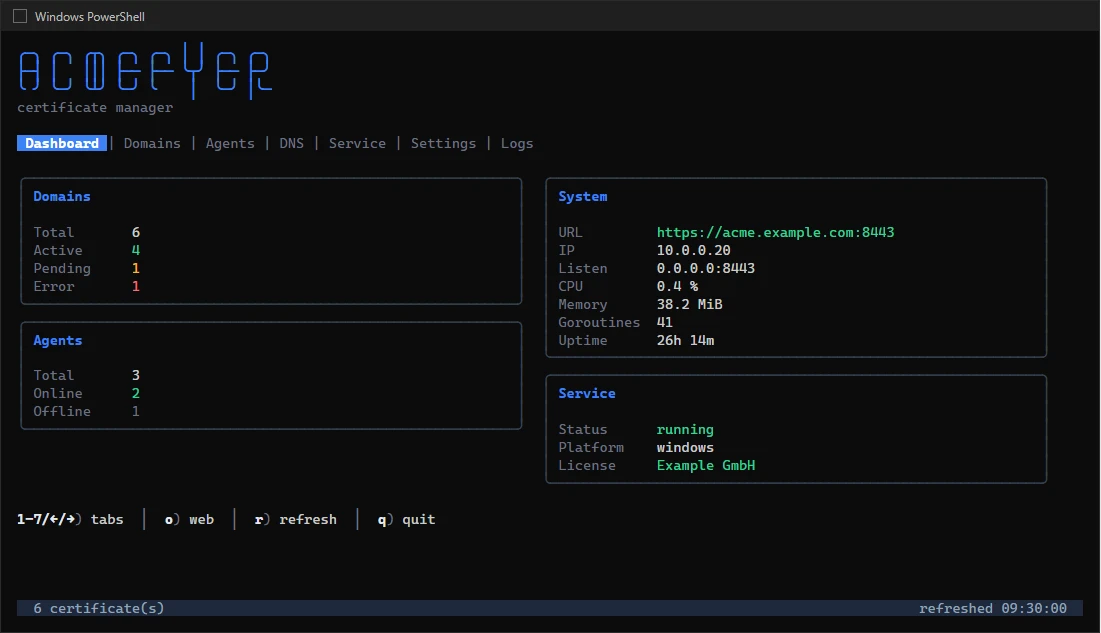
1–7, ←/→, Tab | Switch between the tabs Dashboard, Domains, Agents, DNS, Service, Settings and Logs. |
↑/↓, k/j | Move up and down in lists. |
r | Reload right away. |
o | Open the interface in the browser. |
l | Open the interface to other computers or close it again. Applies after a restart. |
Enter | Show details of the selected certificate (Domains tab). |
R | Renew the selected certificate now. |
Space | Select or deselect a DNS server (DNS tab). |
s / t | Save the selection, or test whether the DNS servers answer (DNS tab). |
i / u / s / x | Set up, remove, start or stop the service (Service tab, with administrator rights). |
Enter / Esc | Change the selected value, confirm it with Enter or cancel with Esc (Settings tab). |
s / t | Save the settings, or test the connection to www.wedigo.net with the proxy entered (Settings tab). |
R | Restart the service after saving so the settings apply (Settings tab). |
End | Jump to the end of the log and follow new entries (Logs tab). |
q, Esc, Ctrl+C | Close the console window. If Acmefyer does not run as a service, this also stops the server. |
Interface for your own scripts
Certificates can also be created and queried through an interface (JSON), for example from your own scripts. For this, set a key in server.api_token and send it with every call (Authorization: Bearer <key>). The addresses for agents are used by acmefyer-agent only.
| Route | Login | Meaning |
|---|---|---|
GET /api/info | public | Name and version. GET /health also answers as long as the server runs, good for monitoring systems. |
POST /api/v1/certificates | API token | Create a certificate. |
GET /api/v1/certificates | API token | All certificates with state and expiry date. |
GET /api/v1/certificates/{id} | API token | One certificate. |
DELETE /api/v1/certificates/{id} | API token | Delete a certificate. |
POST /api/v1/certificates/{id}/renew | API token | Renew a certificate now. |
POST /api/v1/agents/enroll | agent enrollment token | A new agent enrolls. |
GET /api/v1/agent-setup/{token} | one-time link | One-time download of a setup package during the remote installation of a Windows agent. The token in the address is valid for ten minutes and once. |
POST /api/v1/agents/{id}/heartbeat | enrolled agent | The agent reports that it is running, with version, platform and IP addresses; the answer carries a requested restart or scan. |
POST /api/v1/agents/{id}/inventory | enrolled agent | The agent reports the applications with TLS it found on its system. |
POST /api/v1/agents/{id}/removed | enrolled agent | The agent confirms that it uninstalled itself from its system on request (or reports why not); the server then deletes its record, see Removing an agent. |
GET /api/v1/agents/{id}/program | enrolled agent | The agent fetches the agent program of this server for its platform when it is updated; its SHA-256 comes along in the header X-Acmefyer-SHA256. |
GET /api/v1/agents/{id}/tasks | enrolled agent | The agent fetches its jobs. |
POST /api/v1/agents/{id}/tasks/{taskID}/result | enrolled agent | The agent reports the result of a job. |
GET /api/v1/agents/{id}/challenges | enrolled agent | The agent fetches validation files for HTTP-01. |
POST /api/v1/agents/{id}/challenges/{jobID}/result | enrolled agent | The agent reports that the validation file is in place. |
POST /api/v1/agents/{id}/certificate | enrolled agent | The agent renews its own identity. |